Statistics Widget for Blogger

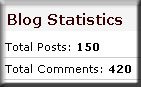
Just came to know about this cool widget n it’s easy to use also. This widget basically shows Quick Stats Of your blog which includes “Total Posts” n “Total Comments” on your blog.You can see the working of it in my blog in the sidebar at the bottom.


If you are interested to display the total number of posts and total number of comments on your blog, please follow the instructions below.

Continue reading Statistics Widget for Blogger


Top 10 Search Terms:

• blogger statistics widget • statistic gadget blogger com

Easy way to add Adsense for search into Blogger/Blogspot template

For some odd reason, when I tried to add the Adsense for search box html/javascript code directly into my blogger template xml it would not appear. So I found a really simple hack . I’ve just added a few more screenshots for the xml illiterates (like myself) to make things a lot easier. Here’s the easy way to add adsense for search into your own blogger/blogspot blogs right above the first post, just like I have there!

1. Click on the “Layout” tab in your blogger control panel.

2. Click the “Edit HTML” link.

3. Scroll down until you see showaddelement=’no’

4. Change “no” to yes.


If you click on the “Page Element” link (still inside your “Layout” tab) you will notice “Add a new page element” above your “Blog Post” box has now appeared. Now you can add any page element you want. To add a search box simply choose the html/javascript element and add your code and save. That’s it! Simple huh? Adding an Adsense for search box allows your user to easily search your website while giving you another opportunity to make some more money online!

Table of Content For Your Site

This is a very useful hack. Can you see my Table of Content? look at my sidebar, click show the table of content — so….what do you think? do you like it?.It helps to hide your big table of contents into a small javascript link which saves lots time n making blog load faster.If you want to put a TOC in your blog so that you readers can easily find the content that they want you can follow the simple steps


I decided to just link you to the original post instead of posting them here because the instruction is very clear and easy to follow but if you have trouble i can still help you. You can change the background color to match your site and the border if you wanted too. Just look at the TOC CSS and look at the background and border and change them to your liking.

BlogTOC Widget Released, If you have more than 100 post read this beyond the 100 post limits.

Internet Explorer 6 Fix for Blogger Templates

When your site gets a visitor and finds that one of your sidebar has been pushed below the posts, he’ll consider your site of not a decent quality and you might lose a regular reader

The ready made templates which are available for Bloggers are from the side of some world class designers but when a blogger places an image, video etc. in the middle of the post and the width of the images/video is more than that space provided, in some versions of Web browser, the sidebar tends to drop ,ie, it slips down blog posts this is also known as float drops.

#sidebar-wrapper

{

width: 240px;

float: right;

word-wrap: break-word; /* fix for long text breaking sidebar float in IE */

overflow: hidden; /* fix for long non-text content breaking IE sidebar float */

}

word-wrap:break-word property for fixing long floating text works only in Internet Explorer

Too make your sidebar fixed in one location, add these three CSS properties to the sidebar-wrapper property of your template

#sidebar-wrapper

{

positon:absolute;

magin-top:0px;

margin-left:0px;

}

So now the code looks like this:

#sidebar-wrapper

{

positon:absolute;

magin-top:1px;

margin-left:1px;

width: 240px;

float: right;

word-wrap: break-word; /* fix for long text breaking sidebar float in IE */

overflow: hidden; /* fix for long non-text content breaking IE sidebar float */

}

This confirms to the Web Browser that the sidebar has to remain fixed at one place only in all versions of the Web Browser. The Sidebar will remain static and should not be affected by any long floating image/text/video.
Inline comments are available for Blogger blogs!

I’m thrilled to tell you that the Blogger team have enabled a comment form below the post – WordPress style! This is probably the feature we ALL wanted added to the Blogger service, so many thanks go out to the Blogger team for enabling this service for us. The inline comment form is currently available through Blogger in Draft. To activate this, go to Settings>Comments in your Blogger dashboard and scroll down to “Comment form placement” where you can check the radio setting for “Embedded below post”.


There is only one problem with this at the moment: those of us who have customized our templates cannot currently use this feature. This is because our templates do not contain the code required to display the comment form. If you use a default template, your comment form should automatically appear below your post once you have changed the comment settings in your blog. I will post about this in full detail in the next couple of hours with instructions for those who have modified their templates.

Update: I have now posted full details for adding comment form functionality to your customized Blogger template, and you can also see this in action beneath this (and every) post on Templates Treasure.